Custom Cursor Effects Without Breaking Usability: A Practical Guide for React
 Uncode UI
7 min read
Uncode UI
7 min read
The pointer is the most personal part of the page
People look at your hero, but they hold your cursor. It is the one element that moves exactly when they move, and that is why cursor effects feel so vivid. A soft glow that follows the mouse, a word that gets heavier as the pointer approaches, a trail of photos that spills out behind a movement: done well, these make a site feel alive in a way no static layout can.
Done badly, they make a site feel broken. The pointer lags, clicks land in the wrong place, the fan spins up on a laptop, and anyone on a phone or using a keyboard sees nothing at all, or worse, sees a mess. The difference between the two is rarely the idea. It is a handful of decisions about scope, timing and fallbacks. This guide walks through those decisions, using a few of today's additions to the Uncode catalog as examples.
Decorate the pointer, do not replace it
The riskiest cursor effect is the one that hides the system cursor with cursor: none and draws a custom one in its place. The native pointer is drawn by the operating system, outside the page's render loop, so it never drops frames. A custom one is drawn by your JavaScript, which means it can fall behind during a heavy scroll, a layout shift or a slow React render. Even a delay of two frames is noticeable when the thing that lags is attached to someone's hand.
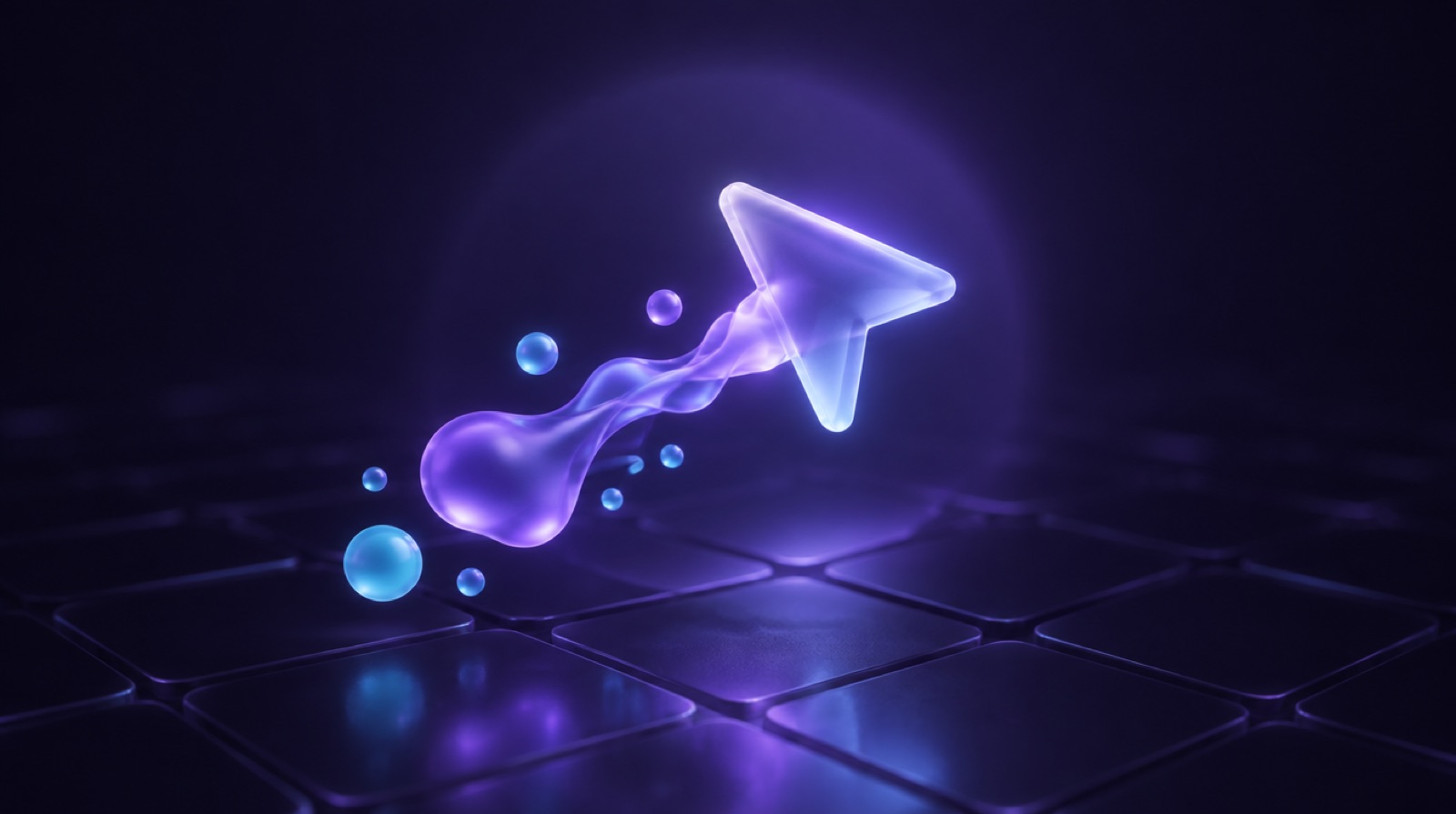
The safer pattern is to keep the real pointer visible and add something around it. The Liquid Cursor does this: it paints colored particles along the mouse path on a full screen canvas with pointer-events: none, then runs them through an SVG gooey filter so they melt into one blob. The system arrow stays exactly where it should be, and the liquid is pure decoration. If the canvas stutters, nobody misclicks.
When you do hide the native cursor, keep it local. The Morphing Cursor only uses cursor-none inside the headline it animates. Over that word a circle grows and reveals a second line of text in inverted colors, and the moment the pointer leaves, the normal cursor is back. Scope is the whole trick: a custom cursor over one hero word is a flourish, a custom cursor over an entire checkout form is a liability.
Keep the work off React's render path
Mouse events fire far more often than the screen refreshes. If every mousemove calls setState, React re-renders the component, and possibly its children, dozens of times per second. On a simple card that might be fine. On a page with a real app underneath it, it is the fastest way to make the whole interface feel sticky.
Three habits keep cursor effects cheap:
- Store the pointer in a ref, not in state. Write the latest coordinates to
useRefin the event handler, then read them in a singlerequestAnimationFrameloop that updates styles directly. That caps the work at one update per frame no matter how fast the mouse moves. - Use motion values when you use Framer Motion.
useMotionValueanduseMotionTemplateupdate the DOM without re-rendering. The Spotlight Feature Grid feeds the mouse position into a radial gradient this way, so the glowing border tracks the pointer smoothly while React stays idle. - Measure once, not every frame. Calling
getBoundingClientRectinside a hot loop forces layout. Cache positions and refresh them on resize or scroll. The Proximity Type headline caches the center of every character and only re-measures a few times per second while the pointer is active.
Easing matters too. Most good cursor effects do not follow the mouse exactly. They chase it with a small lag, usually a linear interpolation like current += (target - current) * 0.15 per frame, or exponential smoothing tied to the frame time. That lag reads as weight and softness. It also hides the jitter of raw mouse data. Keep it short, though: past a tenth of a second the effect stops feeling attached to the hand.
Uncode UI
Build with AI, not against it.
Over 1,400 React and Tailwind components that run live in the browser, with a prompt ready to paste into Claude, Cursor or v0. Plus a community of people building real sites with AI.
Scope the effect to a container
Window level listeners are tempting because they are easy, but they make an effect react to movement anywhere on the page, including over parts that have nothing to do with it. They also make the component harder to reuse, because two instances end up fighting over the same events.
Listening on the element itself, or on its parent, is usually better. The Clipped Circle attaches its listeners to its parent element and computes the pointer position as a percentage of that box. Drop it inside a button, a card or a whole panel, and a soft circle with mix-blend-mode: difference appears only over that element, inverting whatever sits underneath. The Cursor Image Trail does the same with photos: it only spawns images when the pointer travels a minimum distance inside its own box, caps the trail at a fixed length, and clears everything on mouseleave.
That last detail deserves a moment. Every effect that responds to hover needs a clear exit. When the pointer leaves, the glow should fade, the circle should shrink and the trail should empty. Without it, the effect freezes in its last state and the component looks broken the next time someone scrolls past.
Plan for touch, keyboards and reduced motion
A large share of visitors will never see a hover state. On phones there is no pointer to follow, and a touch generates a brief burst of events that can leave a hover effect stuck halfway. Two tools help here. The media query (hover: hover) and (pointer: fine) tells you whether the device has a precise pointer that can hover, so you can skip mounting heavy effects when it does not. And pointer events expose pointerType, so a handler can ignore touches while still reacting to a mouse or pen.
Whatever the effect reveals has to be available another way. If hovering over a card shows extra detail, that detail should also appear on focus, or simply be visible on small screens. If a cursor effect is the only hint that something is clickable, keyboard and touch users lose the hint. The decoration can be exclusive to the mouse. The information cannot.
Respect prefers-reduced-motion as well. For cursor effects the simplest answer is often to turn the motion off and keep the static design. Proximity Type is a good model: when reduced motion is on, it skips its animation loop entirely and renders the headline at its resting weight. The real text also lives in a visually hidden element for screen readers, while the animated letters are marked aria-hidden, so assistive technology reads one clean sentence instead of a string of separate characters.
Budget the cost before you ship
Cursor effects run for as long as someone moves the mouse, which on a long page can be minutes. That makes their cost cumulative in a way a one time entrance animation is not. A few checks before shipping:
- Pause when hidden. An effect that is scrolled off screen should stop its animation loop. An
IntersectionObserveraround the component is enough to do it. - Cap particle counts. Trails and particle systems should have a hard limit and remove old items as new ones arrive, instead of growing for as long as the pointer moves.
- Prefer transforms and opacity. Animating
transformandopacitystays on the compositor. Animatingwidth,toporbox-shadowon every frame triggers layout or paint. - Test on a slow machine. Throttle the CPU in your browser's developer tools and move the mouse around. If the effect stutters there, it will stutter for real visitors.
Try them in your own project
All the components mentioned here are in the Uncode catalog with live previews, and you can copy the code straight into a React and Tailwind project. If you work with an AI assistant in your editor, you can also connect Uncode to Claude Code, Cursor or Lovable and ask for a component by name, so the assistant pulls the real source instead of guessing at it.
Whichever route you take, start with the smallest version of the effect, scope it to one element, give it a clean exit and a reduced motion fallback, then add polish. The best cursor effects are the ones people notice once, enjoy, and then stop thinking about, because the page never gets in their way.
Uncode UI
Build with AI, not against it.
Over 1,400 React and Tailwind components that run live in the browser, with a prompt ready to paste into Claude, Cursor or v0. Plus a community of people building real sites with AI.