Scroll Animations That Don't Hijack the Page: A Practical Guide for React
 Uncode UI
7 min read
Uncode UI
7 min read
The scroll bar belongs to the reader
Scrolling is the one interaction every visitor performs on every page. That is exactly why scroll animation is so tempting: you get a constant stream of input for free. It is also why it goes wrong so often. The moment a page starts deciding how fast you move, where you stop, or what you are allowed to see before you keep going, the reader loses control of the most basic thing a website gives them.
Good scroll animation follows the reader. Bad scroll animation drives them. This guide is about staying on the right side of that line, with practical patterns for React and Tailwind and a few components from today's additions to the Uncode catalog that show each idea in code.
Three kinds of scroll motion
It helps to separate scroll animation into three families, because each one has different costs and different rules.
- Scroll-triggered. Something plays once when it enters the viewport: a card fades up, a heading slides in. Scroll only decides when it starts. After that it runs on its own clock.
- Scroll-linked. The animation is tied directly to scroll position. Scroll down and a progress line grows, scroll back up and it shrinks. Scroll is the timeline.
- Scroll-pinned. A section sticks in place while the page keeps scrolling underneath it, and the scroll distance drives a sequence inside the pinned area: a slideshow, a stack of cards, a product that rotates.
Triggered motion is cheap and safe. Linked motion is great for showing progress and position. Pinned motion is the most dramatic and the easiest to abuse, because it changes how far a person has to scroll to get past a section.
Scroll-triggered reveals: subtle and once
The classic reveal is the fade-up on enter. It is fine, and it is everywhere, so the bar for doing it well is not high. Keep the distance small, around 8 to 16 pixels. Keep the duration short, under 600 milliseconds. Play it once, not every time the element crosses the edge of the screen.
The feature list showcase is a good example. Its list items and image blur in with a short stagger the first time the section is visible, using Framer Motion's whileInView with viewport={{ once: true }}. After that the section is just a section. Clicking an item crossfades the image, and nothing else moves.
The most common mistake with reveals is hiding content until JavaScript runs. If the initial state is opacity: 0 and the script fails, loads late, or the observer never fires inside an embedded frame, the content simply never appears. Two safeguards help. Respect prefers-reduced-motion by rendering the final state directly, and make sure anything critical, like the main heading or a call to action, is visible without the animation.
Scroll-linked progress: show people where they are
Linked animation is at its best when it carries information. A reading progress bar tells you how much of an article is left. A timeline whose line draws as you move tells you which step you have reached.
The scroll timeline draws a violet line down the middle of a list of milestones and lights up each dot as the line passes it. Under the hood it reads the container's position with getBoundingClientRect on scroll and turns it into a number between zero and one. If you build something similar, a few details matter:
- Use a passive listener so the browser never waits for your handler before scrolling.
- Update a transform or a single height value, and avoid touching layout for many elements per frame.
- Give the inactive state enough contrast to read. Dimming items to 30 percent opacity looks elegant until someone with low vision tries to read them.
Framer Motion's useScroll and useTransform make this cleaner, because the values update outside React's render cycle. You map scrollYProgress to a scale or an opacity and pass the motion value straight into style. No state, no re-render on every scroll event.
Uncode UI
Build with AI, not against it.
Over 1,400 React and Tailwind components that run live in the browser, with a prompt ready to paste into Claude, Cursor or v0. Plus a community of people building real sites with AI.
Pinned sections: the expensive kind
Pinning is where scroll animation becomes storytelling. A frame sticks to the screen, and scrolling plays it forward like a video. Done well, it is memorable. Done badly, it is a wall the reader has to scroll through for five seconds before the page lets them go.
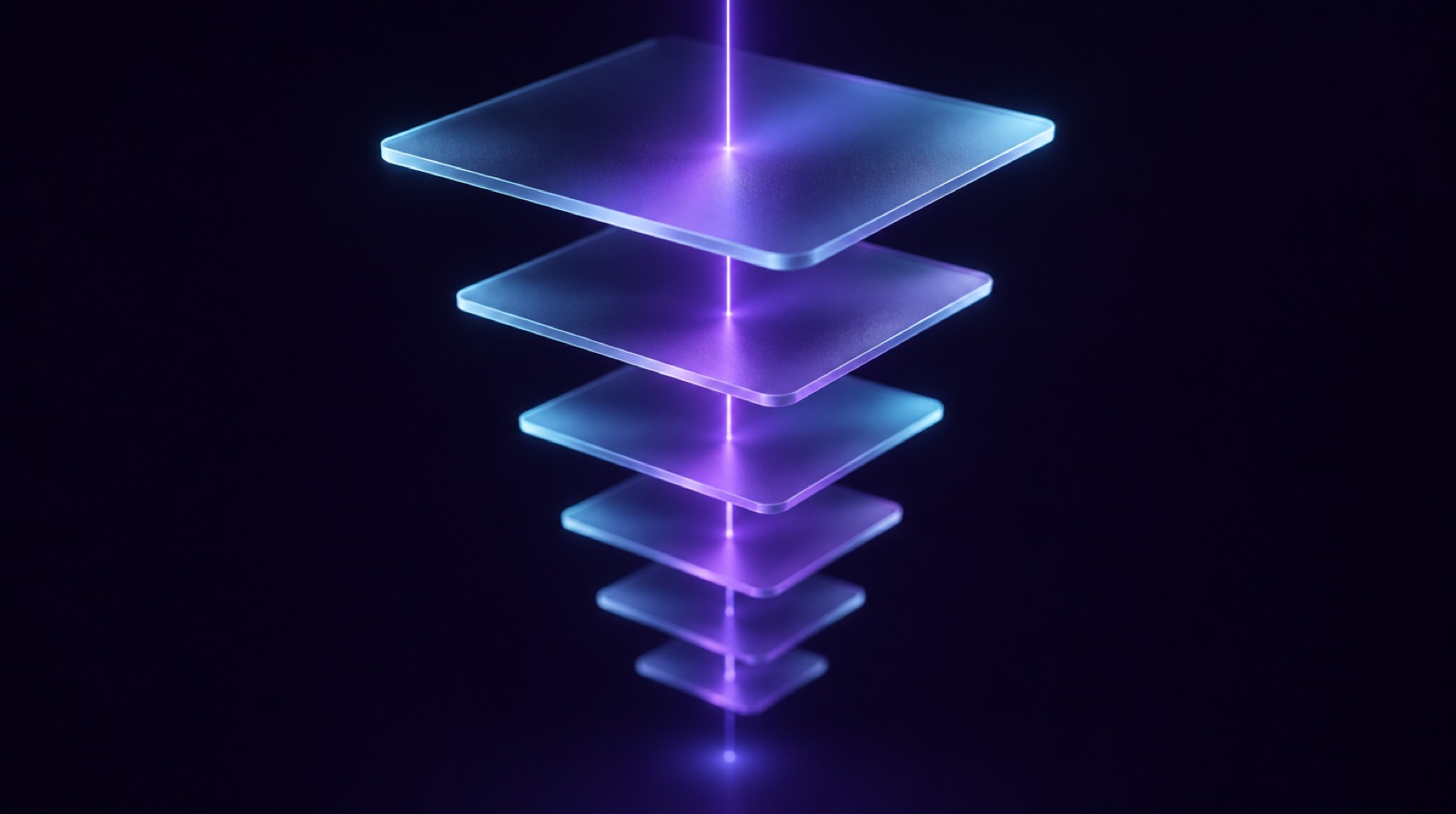
The scroll autoplay component shows the pattern in its simplest form. A tall wrapper, three times the viewport height, contains a sticky frame. Each image inside the frame is mapped to its own slice of the scroll range and fades in when you reach it. The images scrolling animation does something similar with sticky cards that scale down slightly as the next one lands on top, so you see the stack build up.
Some rules that keep pinned sections friendly:
- Budget the distance. Every extra viewport of pinned height is time the reader spends not reaching the next section. Two to three viewports is plenty for most sequences.
- Make the first frame complete. If someone scrolls fast, the first and last states are what they see. Neither should be blank. In our version of scroll autoplay, the first image stays fully visible from the start so the frame is never empty.
- Never trap the wheel. Do not call
preventDefaulton wheel or touch events to slow people down. Let native scrolling do its job and let your animation follow along. - Offer the content without the show. On small screens or with reduced motion, unpin the section and stack the steps normally. The story is still there, just as a list.
Smooth scroll libraries and scroll jacking
Libraries that replace native scrolling with an eased, virtual version are popular in award-winning portfolios. They also change how the scroll wheel responds, break the browser's find-in-page jumps in some setups, and can make keyboard and assistive technology users feel like the page is lagging behind them.
If the effect you want is "animations that feel smooth", you rarely need to touch the scroll itself. Springs on the animated values give you the same softness while the page scrolls at the speed the person chose. That is why we removed the smooth scroll wrapper when adapting the images scrolling animation for the catalog. The sticky stack works the same with plain browser scrolling, and it no longer takes over the whole document.
Performance: what actually costs frames
Scroll handlers run often, so small inefficiencies add up quickly. A few habits keep scroll animation smooth on mid-range phones:
- Animate transform and opacity. They can be handled by the compositor. Animating
top,heightorbox-shadowon many elements forces layout or paint on every frame. - Look at native options. CSS scroll-driven animations with
animation-timeline: scroll()andview()now run in Chromium-based browsers and Safari, with no JavaScript at all. Treat them as progressive enhancement and check current support for your audience before relying on them.
Accessibility is not optional here
Large motion tied to scrolling is one of the most common triggers for people with vestibular disorders. Parallax layers moving at different speeds, zooms, and spinning elements are the worst offenders. The fix is not complicated: check prefers-reduced-motion and, when it is set, either remove the motion or replace it with a simple fade. Framer Motion gives you useReducedMotion for this, and every pinned or linked component should honor it.
Beyond motion sensitivity, think about the keyboard. Pressing space or page down should move through your page in sensible steps. Content revealed by scrolling should also be reachable by tabbing, and focus should never land on something that is still invisible.
A quick checklist before you ship
- Does the animation carry meaning, such as progress, sequence or emphasis, or is it decoration?
- Is every piece of content readable if the animation never runs?
- Can someone scroll past a pinned section in a couple of flicks?
- Does reduced motion produce a calm, complete page?
- Is the frame rate steady on a real phone, not just your laptop?
If you want to try these patterns in your own project, every component mentioned here is in the catalog with its source and demo, and you can pull them straight into Claude Code, Cursor or Lovable through the Uncode MCP connection. Start with one triggered reveal and one progress indicator. Add a pinned sequence only when you have a story that is worth the scroll.
Uncode UI
Build with AI, not against it.
Over 1,400 React and Tailwind components that run live in the browser, with a prompt ready to paste into Claude, Cursor or v0. Plus a community of people building real sites with AI.